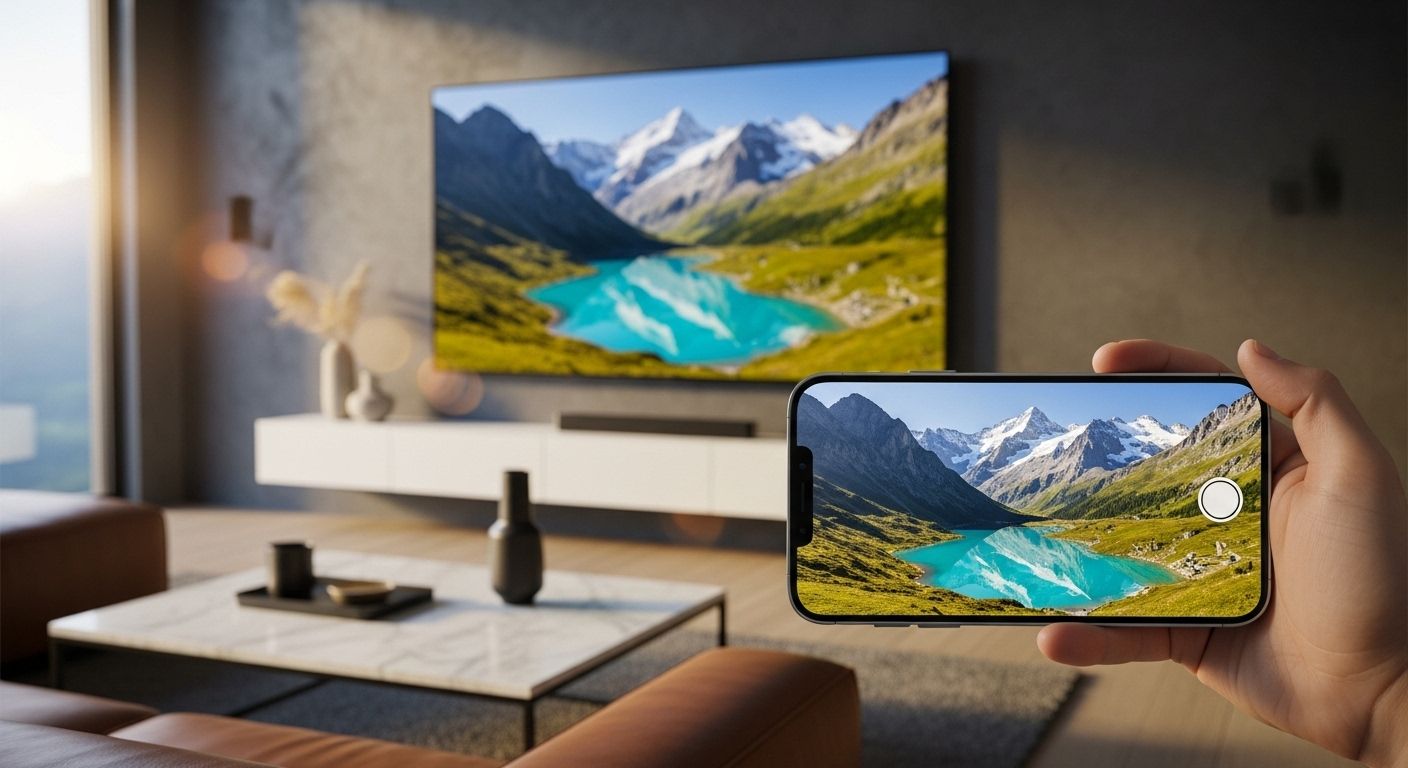
How to Connect iPhone to TV: The Definitive Guide for 2024
In an era where our iPhones serve as the primary hub for our digital lives—housing our favorite movies, high-resolution photos, and high-octane mobile games—the small screen can often feel restrictive. Whether you are looking to host a movie night, share vacation photos with family, or give a professional presentation, knowing how to connect your iPhone to a TV is an essential skill. With the release of the iPhone 15 and its transition to USB-C, alongside the continued evolution of Apple’s AirPlay 2 protocol, the options have never been more diverse or more powerful. This comprehensive guide will walk you through every possible method, from seamless wireless streaming to rock-solid wired connections, ensuring you can mirror your screen to any television, regardless of its age or brand.
Method 1: Using AirPlay 2 for Wireless Mirroring
AirPlay 2 is Apple’s proprietary wireless streaming technology, and it is arguably the most convenient way to connect your iPhone to a compatible smart TV. Unlike the original AirPlay, AirPlay 2 supports multi-room audio and offers significantly improved stability and reduced latency.
Step-by-Step Instructions
- Check Compatibility: Ensure your TV supports AirPlay 2. Most modern TVs from Samsung, LG, Sony, and Vizio (2018 and newer) have this built-in.
- Connect to Wi-Fi: Both your iPhone and your Smart TV must be connected to the exact same Wi-Fi network.
- Open Control Center: Swipe down from the top-right corner of your iPhone (or up from the bottom on older models).
- Tap Screen Mirroring: Look for the icon featuring two overlapping rectangles.
- Select Your TV: A list of available devices will appear. Tap on the name of your TV.
- Enter the Code: If a passcode appears on your TV screen, type it into your iPhone to establish the secure link.
Pro Tip: Streaming vs. Mirroring
Screen mirroring replicates your entire iPhone screen, including notifications. If you only want to share a video (like from YouTube or Netflix), tap the AirPlay icon within the app itself. This allows you to use your phone for other tasks while the video plays on the TV.
Method 2: The Reliable Wired Connection (HDMI)
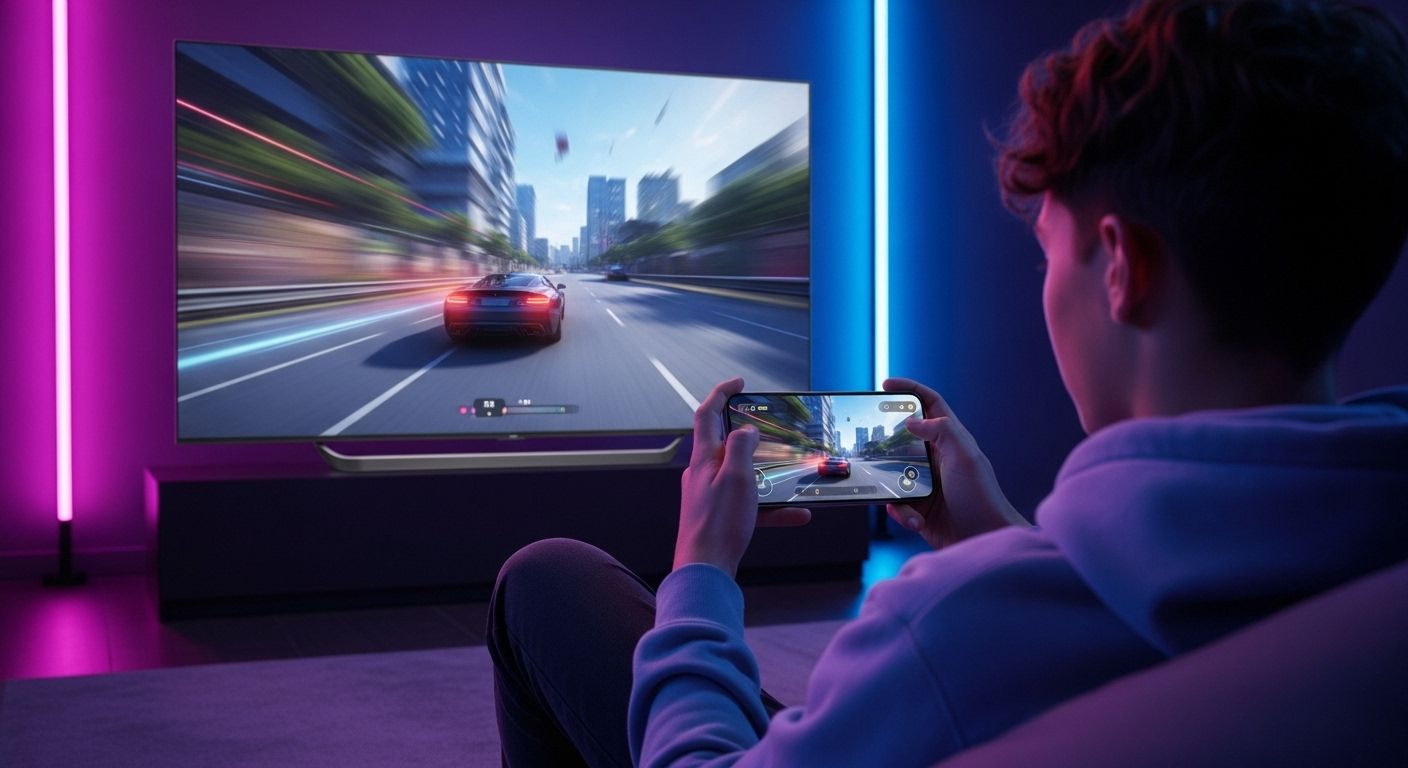
While wireless is convenient, a wired connection is the gold standard for stability, especially for gaming or streaming high-bitrate 4K content. There is zero lag, and you don't need to worry about Wi-Fi interference.
For iPhone 15 and Newer (USB-C)
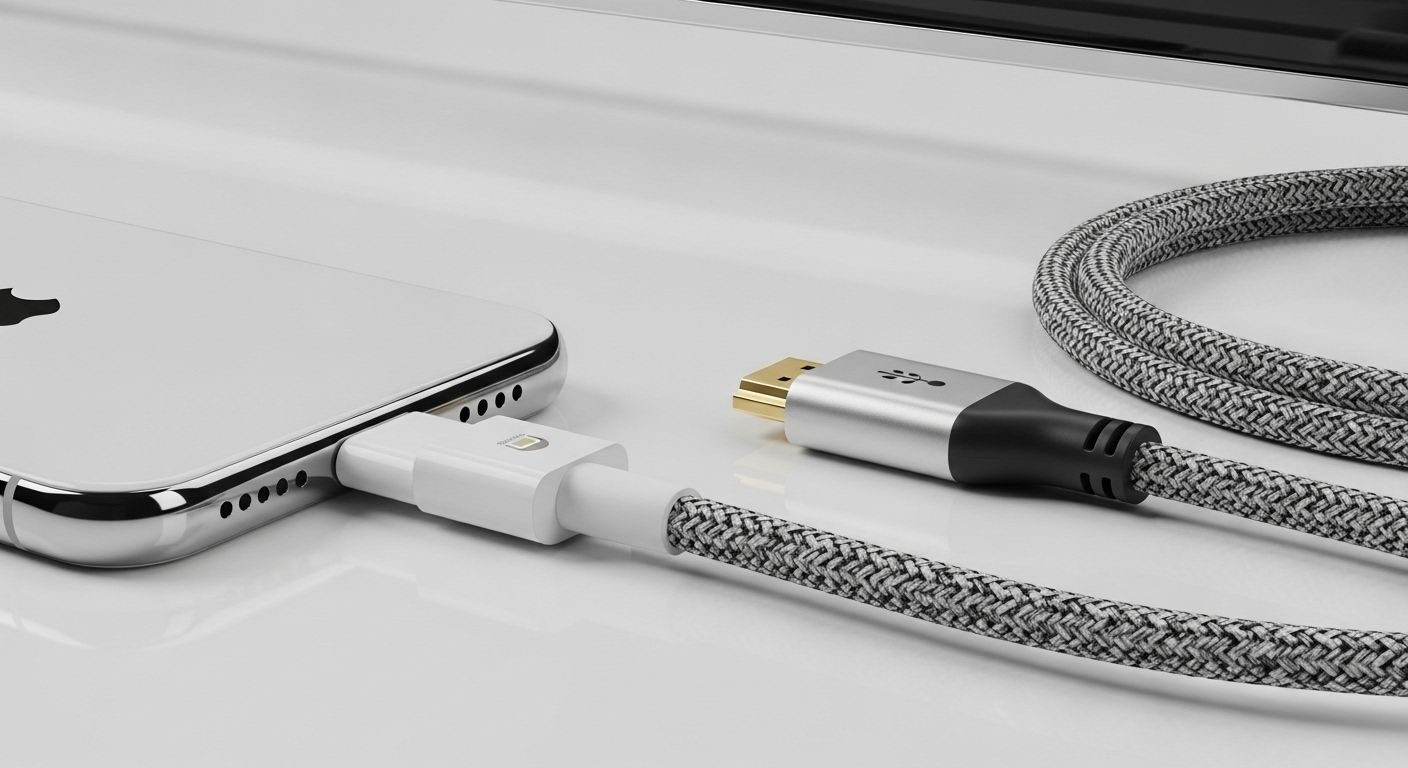
With the switch to USB-C, connecting your iPhone to a TV has become much simpler. You can use a standard USB-C to HDMI cable or a USB-C Multiport Adapter.
- Direct Cable: Plug one end into your iPhone and the other into the TV's HDMI port. Most modern cables support 4K at 60Hz.
- Multiport Adapter: This is recommended if you want to charge your phone while streaming. Plug the adapter into the iPhone, then connect an HDMI cable and a charging cable to the adapter.
For iPhone 14 and Older (Lightning)
You will need the Apple Lightning Digital AV Adapter. Avoid cheap third-party knockoffs, as many do not support HDCP (High-bandwidth Digital Content Protection), which is required to stream apps like Netflix and Disney+.
- Plug the Lightning adapter into your iPhone.
- Connect a high-speed HDMI cable to the adapter and the TV.
- Connect your Lightning charging cable to the extra port on the adapter to keep your battery from draining.
- Switch your TV input to the corresponding HDMI source.
Method 3: Connecting to Roku, Fire TV, and Chromecast
If you don't have a built-in AirPlay TV, you likely have a streaming stick. These devices offer excellent alternatives for iPhone users.
Roku and Fire TV
Most modern Roku and Amazon Fire TV devices now support AirPlay 2. You may need to enable it in the settings menu. Go to Settings > Apple AirPlay and HomeKit and ensure it is turned on. Once enabled, follow the standard AirPlay steps mentioned above.
Google Chromecast
Chromecast does not support native iOS screen mirroring, but it is excellent for casting content from specific apps. Look for the 'Cast' icon (a rectangle with Wi-Fi waves in the corner) in apps like YouTube, Spotify, or Netflix. To mirror your entire screen to a Chromecast, you will need a third-party app like Replica or AirBeamTV.
Method 4: Using Third-Party Apps for Older Smart TVs
If your TV is an older "Smart" model that lacks AirPlay support, you can use DLNA-based apps. Apps like iMediaShare or TV Assist allow you to beam photos and videos stored on your iPhone directly to the TV over your home network.
- Pros: No extra hardware required; works with older Sony, Samsung, and LG TVs.
- Cons: Often limited to photos and videos; cannot mirror the entire screen or play DRM-protected content like Netflix.
Troubleshooting Common Connection Issues
Even with the best technology, things can go wrong. Here is how to fix the most common problems when connecting your iPhone to a TV:
Frequently Asked Questions (FAQ)
Can I connect my iPhone to a TV without Wi-Fi?
Yes, by using a Lightning or USB-C to HDMI adapter. This method does not require an internet connection or a Wi-Fi network to function.
Does screen mirroring drain the iPhone battery?
Yes, mirroring is a resource-intensive task. It is highly recommended to keep your iPhone plugged into a power source while mirroring, especially for long movies or gaming sessions.
Why can't I mirror Netflix or Disney+?
Some apps block screen mirroring due to digital rights management (DRM). However, if you use AirPlay or a genuine Apple HDMI adapter, these apps should work. Third-party mirroring apps often fail with these services.