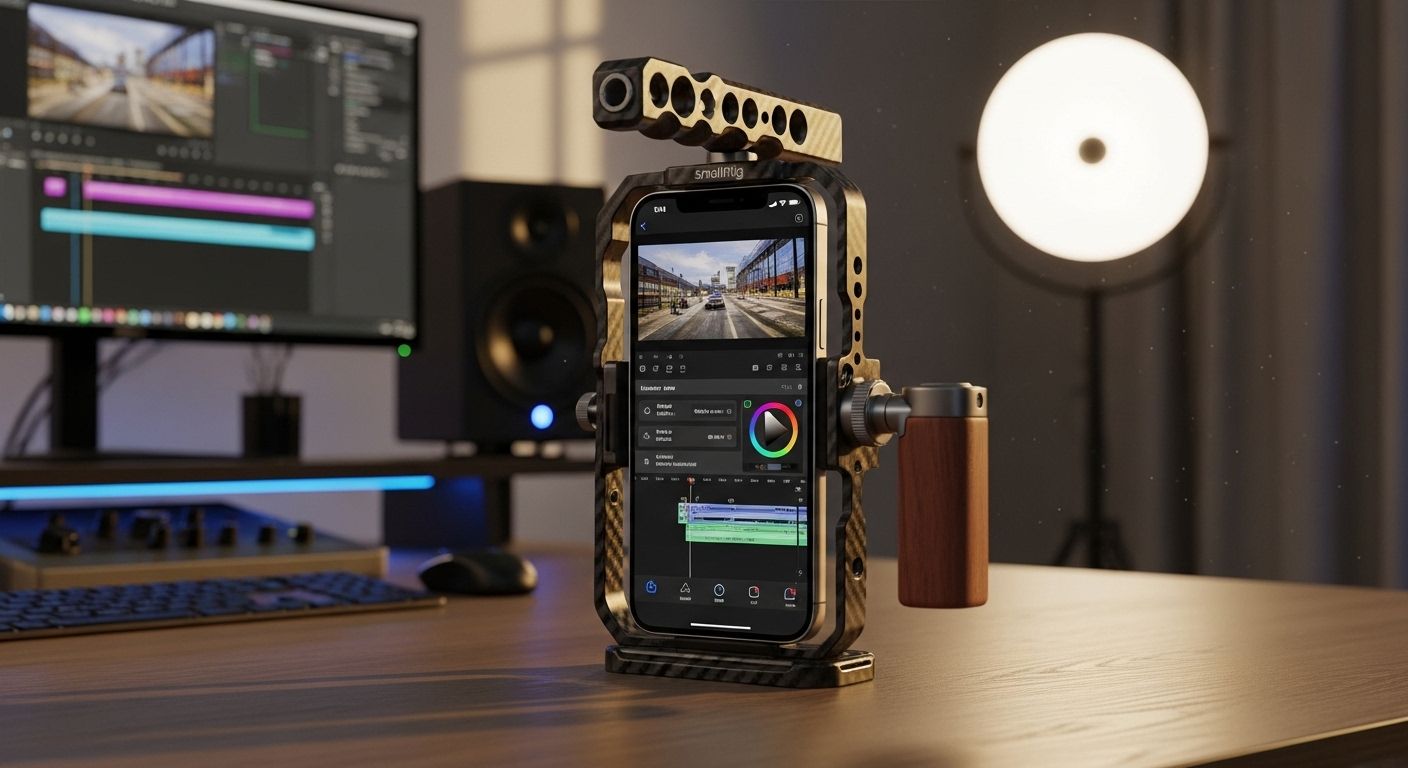
Mastering iPhone Video Editing: The Definitive Professional Guide
The evolution of the iPhone has transformed it from a simple communication device into a powerhouse for digital cinematography. With the advent of 10-bit HDR, ProRes recording, and Cinematic Mode, the hardware in your pocket is now capable of producing footage that rivals professional cinema cameras. However, capturing the footage is only half the battle. To truly stand out in the crowded digital landscape of 2024, mastering the art of mobile video editing is essential. This guide will walk you through every facet of editing on your iPhone, from the simplicity of the native Photos app to the complexity of professional-grade third-party suites.
1. The Foundation: Quick Edits in the Native Photos App
Before diving into complex software, it is vital to understand the robust tools built directly into iOS. The Photos app is often overlooked, but for quick social media clips or basic adjustments, it is remarkably efficient. Apple has integrated a non-destructive editing engine that allows you to tweak parameters with precision.
- Trimming and Cutting: The most basic yet essential skill. By tapping 'Edit' on any video, you can drag the chevron handles to define your start and end points.
- Adjusting Exposure and Color: The Photos app provides sliders for Exposure, Brilliance, Highlights, Shadows, Contrast, and more. For those shooting in less-than-ideal lighting, the 'Brilliance' slider is a secret weapon that lifts shadows and tempers highlights without washing out the image.
- Cropping and Leveling: If your horizon is crooked or you need to change a horizontal video to a vertical 9:16 format for TikTok or Reels, the crop tool handles this with AI-assisted straightening.
- Filters: While often avoided by pros, the 'Vivid' and 'Dramatic' presets can provide a quick base layer for color correction.
2. Stepping Up to iMovie: The Storyteller's Entry Point
When you need to combine multiple clips, add transitions, and overlay music, iMovie is the logical next step. It is free, powerful, and optimized specifically for Apple silicon. iMovie introduces the concept of a 'Timeline,' which is the backbone of all professional video editing.
Key Features of iMovie for iPhone:
- Magic Movie and Storyboards: For beginners, these AI-driven features can automatically stitch together clips based on a theme, providing a template for common video types like travel vlogs or cooking tutorials.
- Precision Trimming: Unlike the Photos app, iMovie allows you to zoom into the timeline, making frame-accurate cuts.
- Audio Integration: You can import tracks from your Files app, choose from a library of royalty-free soundscapes, or record a voiceover directly into the timeline.
- Titles and Overlays: iMovie offers several high-quality title templates that automatically animate, giving your video a polished look instantly.
3. Professional Powerhouses: LumaFusion and DaVinci Resolve
For those who find iMovie limiting, the world of professional third-party apps awaits. This is where the iPhone truly shines as a production tool. LumaFusion has long been the gold standard for mobile editing, offering a multi-track timeline that mimics desktop software like Final Cut Pro. Recently, DaVinci Resolve has also made its way to the iPad and iPhone, bringing Hollywood-grade color grading to your pocket.
| Feature | LumaFusion | CapCut | DaVinci Resolve |
|---|---|---|---|
| Multi-track | Up to 6 tracks | Unlimited (Layered) | Professional Grade |
| Color Grading | Advanced LUTs | Filters & Basic | Nodes & Primary Wheels |
| Best For | Documentaries/Vlogs | Social Media/Trends | Cinematic Grading |
4. Advanced Techniques: Moving Beyond the Basics
To elevate your videos, you must move beyond simple cuts. 2024 is the year of Keyframing and Speed Ramping. These techniques allow you to create dynamic motion and control the rhythm of your story.
Keyframing for Motion Graphics
Keyframing allows you to animate properties over time. For example, if you want a logo to slide in from the left, you set a keyframe at the start position and another at the end position. Most high-end iPhone apps now support keyframing for scale, position, opacity, and even color adjustments.
Mastering Speed Ramping
Speed ramping is the process of smoothly transitioning between different playback speeds. It is a staple of travel vlogs and action sequences. By slowing down a clip as a subject moves through the frame and then speeding it up as they exit, you create a professional, high-energy transition that keeps the viewer engaged.
Sound Design: The Secret Ingredient
Great video is 50% great audio. When editing on an iPhone, use the 'Audio Ducking' feature (available in iMovie and LumaFusion) to automatically lower background music when someone is speaking. Furthermore, adding 'Sound Motifs'—subtle sound effects like whooshes for transitions or ambient birdsong for outdoor shots—adds a layer of immersion that separates amateurs from professionals.
5. Workflow and Storage Management
Editing 4K or ProRes footage on an iPhone requires significant storage. A common bottleneck for mobile editors is the 'Storage Full' notification. To avoid this, consider the following workflow tips:
- External Storage: If you have an iPhone 15 Pro or later, take advantage of the USB-C port. You can edit directly off an external SSD in apps like DaVinci Resolve, saving internal space.
- Proxy Editing: For older devices, use 'proxies'—lower-resolution versions of your clips—to edit smoothly, then swap them for the high-res files during export.
- iCloud Optimization: Ensure your 'Optimize iPhone Storage' setting is managed correctly. While it saves space, it may require you to download clips before you can edit them, which requires a stable internet connection.
6. Exporting for Success
The final step is exporting your masterpiece. Choosing the right settings is crucial for maintaining quality across different platforms. For YouTube, a high bitrate 4K export in H.264 or HEVC is standard. For Instagram and TikTok, ensure your aspect ratio is 9:16 and your frame rate matches the platform's preference (usually 30fps or 60fps).
Conclusion: Your Journey as a Mobile Creator
Mastering how to edit videos on iPhone is a journey of constant learning. The technology is evolving rapidly, with AI features now capable of removing backgrounds, generating captions, and even stabilizing shaky footage with uncanny precision. However, the core of great editing remains the same: storytelling. Use these tools to enhance your narrative, not replace it.
Whether you are a hobbyist capturing family memories or a professional creator building a brand, the iPhone is a world-class editing suite that fits in your pocket. Start small with the Photos app, experiment with iMovie, and eventually challenge yourself with the professional depth of LumaFusion or DaVinci Resolve.
Ready to Create Your First Masterpiece?
Don't let your footage sit in your camera roll. Open your favorite editing app today and start cutting! Subscribe to our newsletter for more mobile filmmaking tips and tricks.